

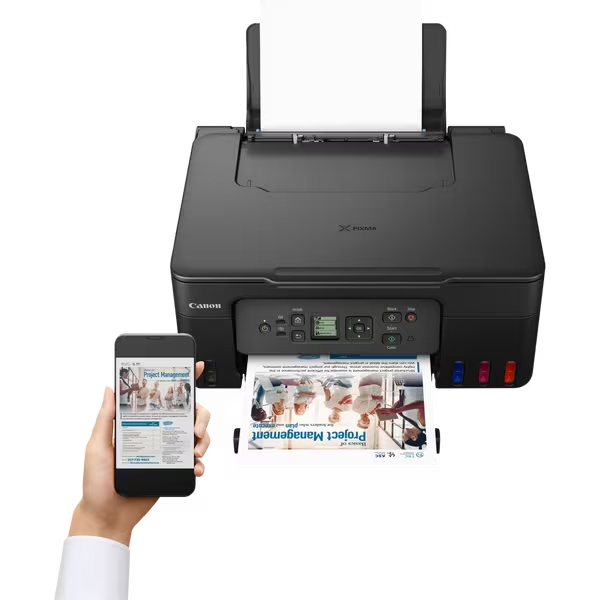
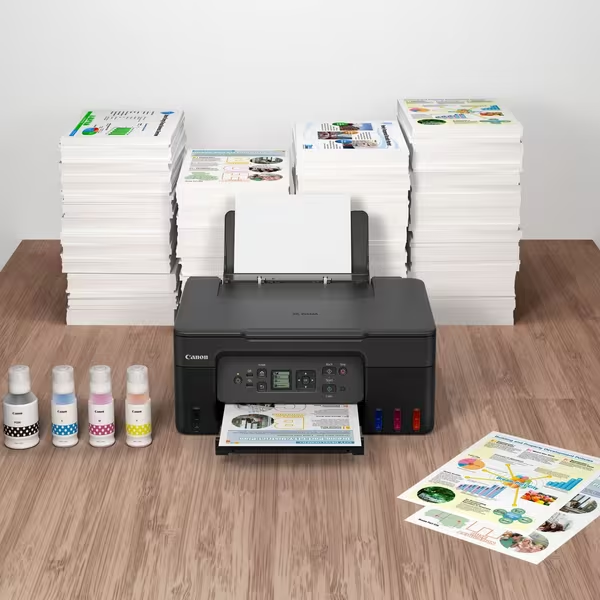
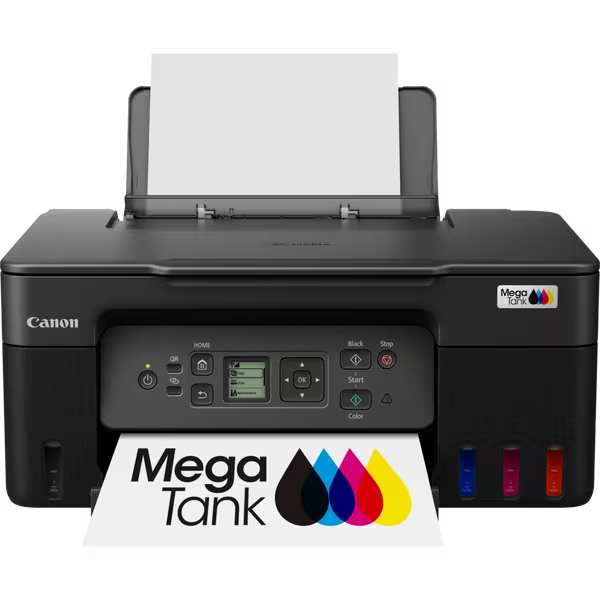
The Canon PIXMA G3470 is a 3-in-1 refillable MegaTank inkjet printer that features comprehensive Wi-Fi connectivity for wireless printing, scanning, and copying from a variety of devices.
Key Wi-Fi Features and Compatibility
The printer’s wireless capabilities allow seamless integration into a home or small office environment.
- Wireless Protocols: It supports the IEEE802.11 b/g/n Wi-Fi standard, operating on the 2.4 GHz frequency band.
- Mobile Apps: The Canon PRINT app (available for iOS and Android) allows users to print, copy, and scan directly from their smartphones or tablets.
- Direct Printing: Features like Apple AirPrint, Mopria (Android), and Wireless Direct enable printing from compatible devices without needing to connect to a router.
- Cloud Connectivity: The printer supports PIXMA Cloud Link, allowing printing from various cloud services.
- Smart Assistants: It is compatible with both Amazon Alexa and Google Assistant for voice-activated printing tasks.
Setting Up Wi-Fi Connectivity
Setting up the Canon PIXMA G3470 is straightforward, using either a computer or a mobile device.
- Power On: After initial physical setup (installing print heads and filling ink tanks), turn on the printer.
- Software Installation: Install the necessary software/drivers from the Canon website or use the Canon PRINT app on your mobile device.
- Connect:
- Using the app: Open the Canon PRINT app and follow the on-screen instructions to register your printer. You may be prompted to press the printer’s pairing button to make it discoverable.
- Manual setup (on printer): Use the printer’s 1.3″ LCD panel to navigate to LAN settings, select Wi-Fi setup, choose your network, and enter the password.
- Confirm: Once connected, other devices on the same Wi-Fi network will be able to print.


Reviews
There are no reviews yet.